

Creating an Agent Key
Create an Agent Key from the management accordion on your dashboard. Select which workspaces it can access and set an expiration date (90 days by default). The key is displayed only once — copy it immediately and store it securely. If lost, you’ll need to regenerate it.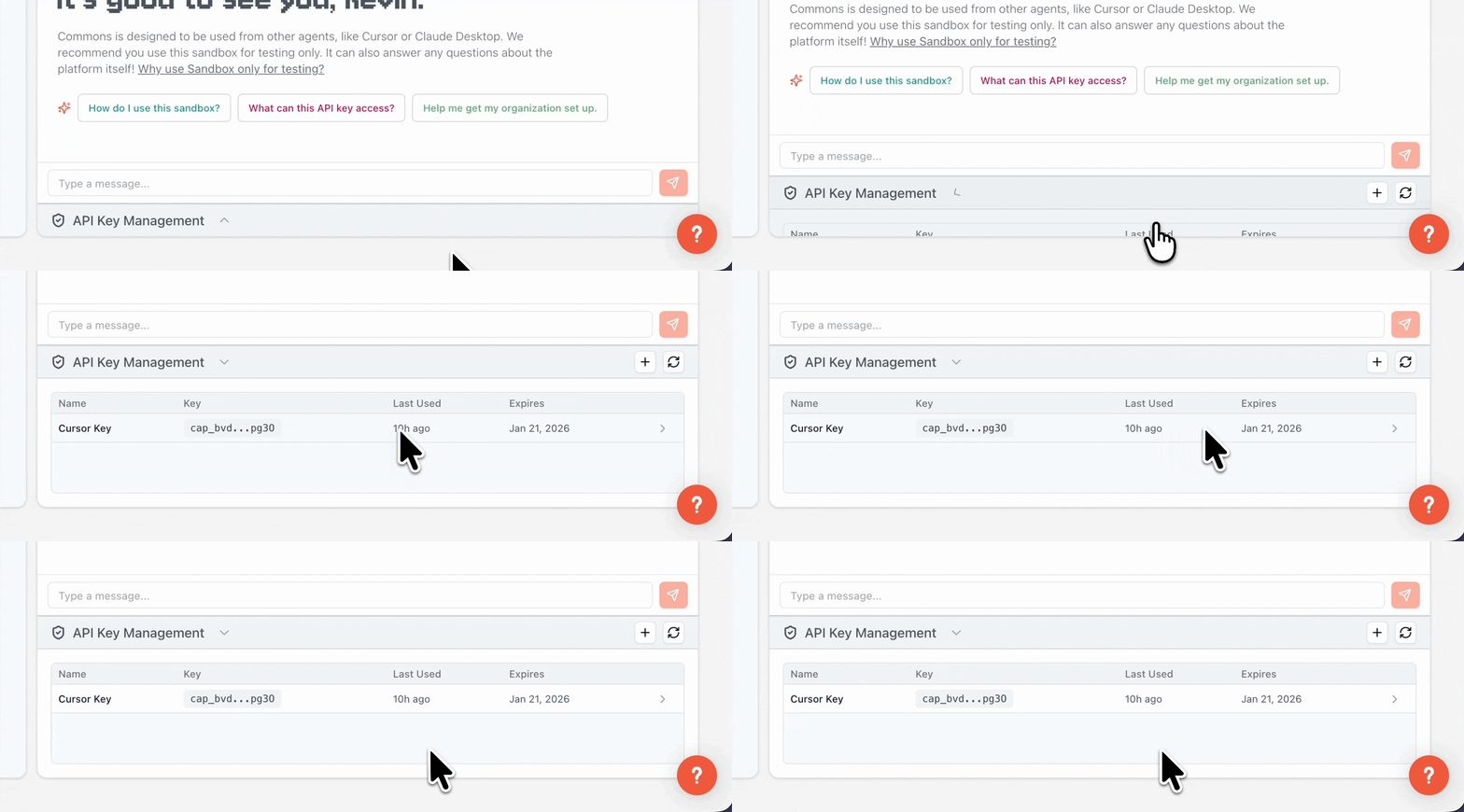
Connecting Your Agent
After creating your Agent Key, you can use it to connect to Commons from any agent compatible with MCP. That includes anything from Claude Desktop to Cline to FLUJO. You can see more clients here. Below are guides for some of the most common MCP clients. Consult your client’s documentation for the most up-to-date connection method. Connection details are in the General MCP Clients section below.Cursor
Cursor
Open Cursor Settings → Tools & MCPs, then click “New MCP Server” or edit your Replace
mcp.json file directly. Add this configuration:YOUR_AGENT_KEY_HERE with your actual Agent Key.Claude Code
Claude Code
Use the Claude Code CLI to add the Commons MCP server:Replace
YOUR_AGENT_KEY_HERE with your actual Agent Key.Other useful commands:- List all MCP servers:
claude mcp list - Check server status (within Claude Code):
/mcp - Remove the server:
claude mcp remove commons
General MCP Clients
General MCP Clients
You can connect to our MCP server from any MCP-compatible AI client using these details:See the Model Context Protocol’s official guide for more details on connecting to remote MCP servers.
- Server URL:
https://api.capacitive.ai - Transport Type: HTTP
- Authentication Method: Bearer Token
REST API Access
REST API Access
Agent Keys can also be used to access Commons programmatically via our REST API. This is useful for custom integrations, scripts, workflows, or applications that need to interact with your workspaces.Base URLAuthentication
ExampleImportant Notes
GET /api/manifest
DescriptionRetrieves a comprehensive manifest of all resources (integrations, files, and webpages) across all workspaces that the Agent Key has access to.Response includes:- List of accessible workspaces
- Connected integrations per workspace
- Uploaded files with metadata
- Added webpages with status
POST /api/search
DescriptionSearches across workspace data (apps, files, webpages) and returns ranked results with scores and metadata.Input| Parameter | Type | Default | Description |
|---|---|---|---|
query | string | — | Natural language search query (required) |
source_types | string | "all" | ”all” or comma-separated like “app,file,webpage” |
integration_ids | string | "" | Comma-separated UUIDs for specific integrations |
limit | number | 10 | Maximum results per source type |
- API responses may take 10-45 seconds depending on query complexity. Configure your client timeout to 90+ seconds.
- The
operatetool is not exposed via REST API due to its approval and clarification requirements. Use MCP for full tool access. - All API requests are logged and auditable through your workspace activity logs.