Skip to main contentKnowledge folders are containers for static knowledge that lives outside your connected apps. You might create a “Sales Resources” folder with pricing guides, product documentation, and outbound templates, or a “Company Wiki” folder with policies and procedures.
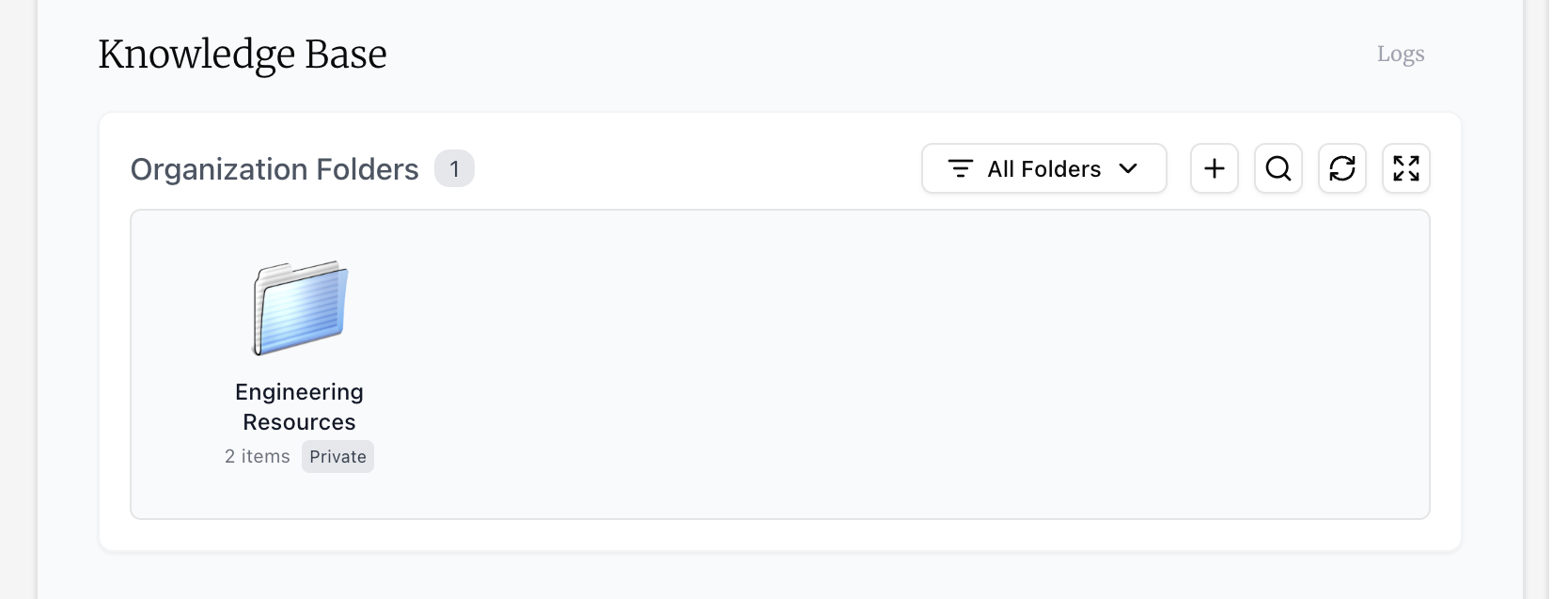
Creating a Folder
Administrators and managers can create knowledge folders from the Organization tab. When creating a folder, you’ll provide a name and description, choose whether it’s public or private, and optionally link it to workspaces.
Public vs. Private Folders
-
Public folders: Everyone in your organization can see this folder exists and browse its contents once their workspace is connected. Any workspace owner can connect their workspace to a public folder.
-
Private folders: Everyone in your organization can see this folder exists, but only organization admins and members of connected workspaces can browse its contents. Only the folder owner or an organization admin can connect private folders to workspaces.
Public folders work well for general company resources that everyone should access, like brand guidelines or product documentation.
Private folders work better for sensitive information that should only be available to specific teams, like financial data or customer details that require restricted access.
Uploading Files
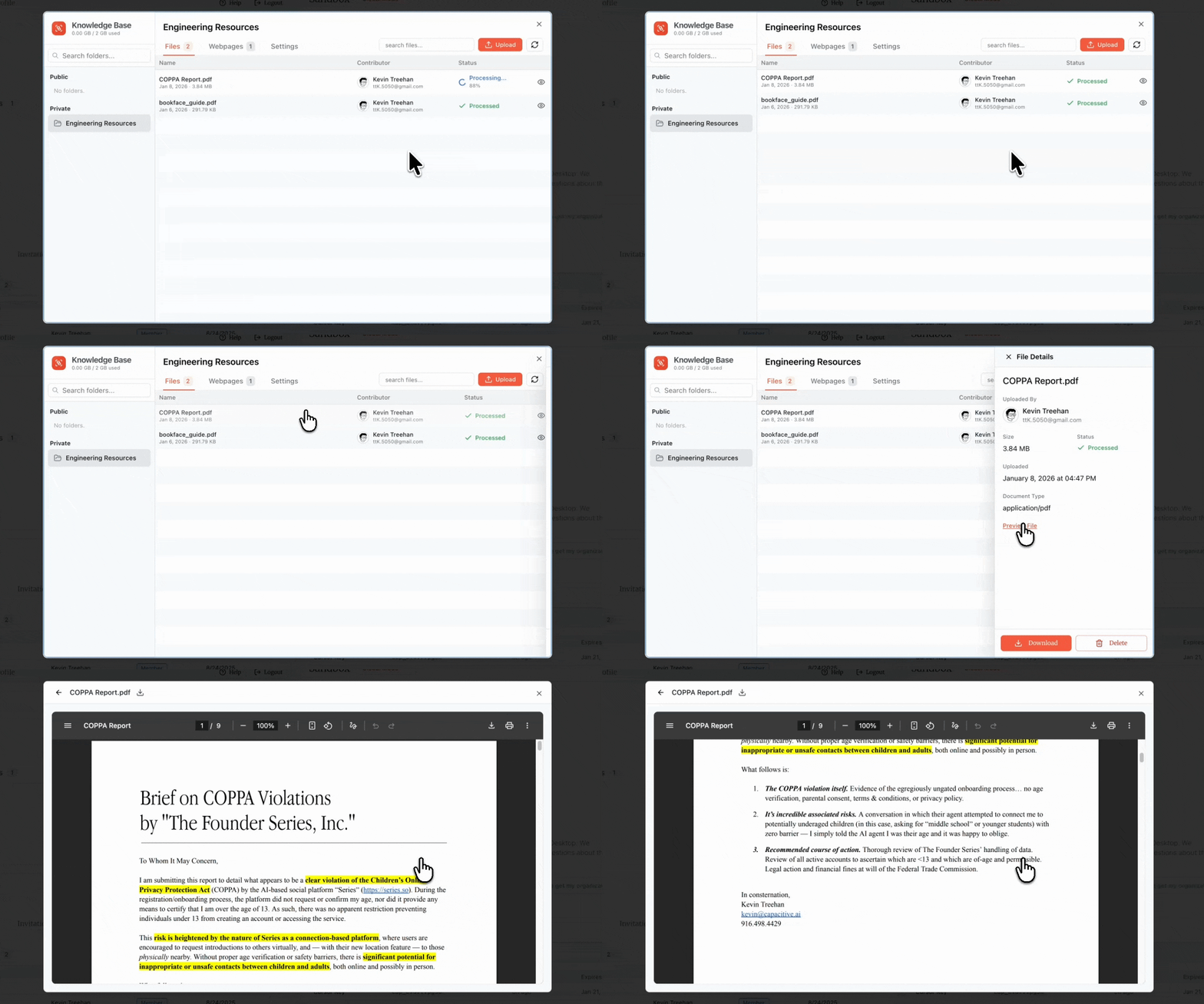
Folder owners and organization administrators can upload files to knowledge folders. Supported formats include PDFs, Word documents, presentations, spreadsheets, images, and text files.
You’ll see a processing status for each file — once completed, the file’s contents are available to agents with access to connected workspaces. Your organization has a storage limit shown in the knowledge base header. Base trim organizations allow for 5GB of storage. Our Sovereign trim package comes with unlimited storage.
Adding Webpages
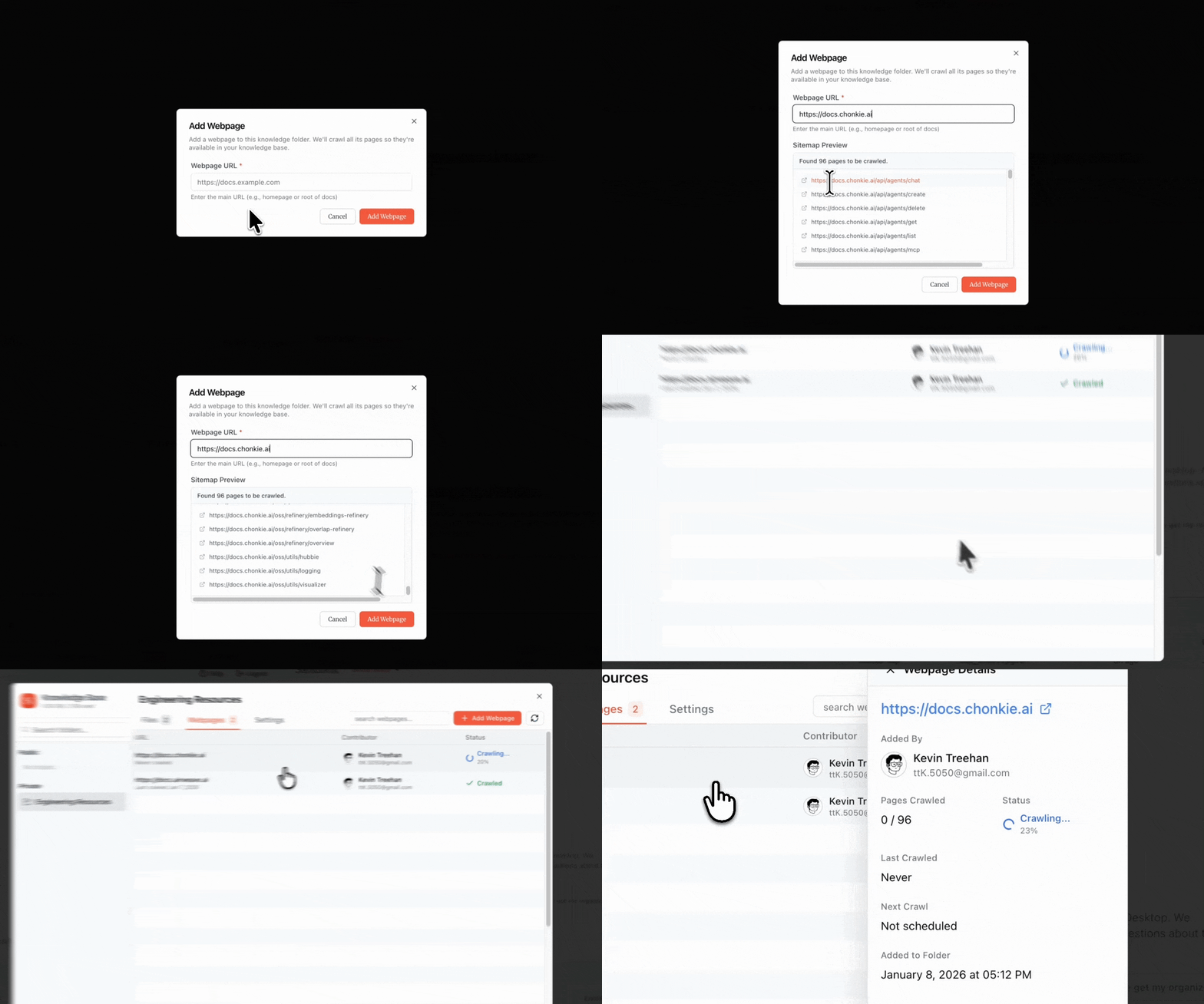
You can also add URLs to documentation sites or web pages. Enter a URL and Commons will crawl the content, following the page’s sitemap. Intelligent crawling is in our development pipeline.
Webpages have automatic crawl schedules (the default is every 48 hours) to keep content up to date as the source changes. You can also trigger manual refreshes anytime.
Linking to Workspaces
Knowledge folders can be linked to multiple workspaces to control access. When you create a folder, you select which workspaces to connect. You can change these connections later from the folder settings.
Agent Keys with access to connected workspaces can search and use the folder’s contents through the unified search tool.