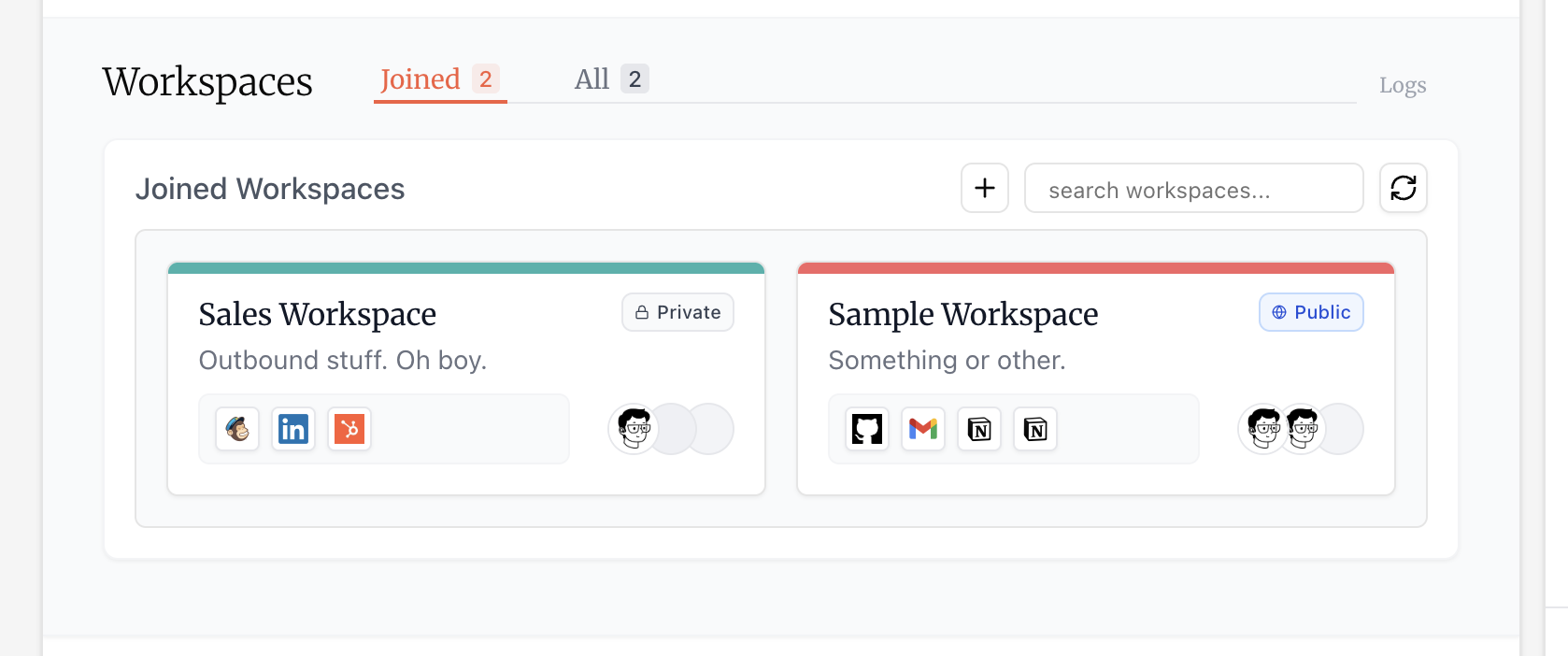
Skip to main contentWorkspaces are containers for integrations organized by use case or team. A “Sales” workspace might hold HubSpot, Gmail, and Salesforce. A “Support” workspace might contain Zendesk, Slack, and your helpdesk tools.
Creating a Workspace
Administrators and managers can create workspaces. When creating a workspace, you’ll provide a name and description, and choose whether it’s public or private.
-
Public workspaces: Any organization member can join. Once joined, they still need appropriate workspace roles to modify settings or create integrations.
-
Private workspaces: Only visible to workspace members and organization administrators. This keeps team resources siloed — for example, an engineering team’s GitHub and internal tools workspace wouldn’t be accessible to sales or support teams unless they’re explicitly invited.
You can change the public/private setting later in workspace settings.
Managing Members
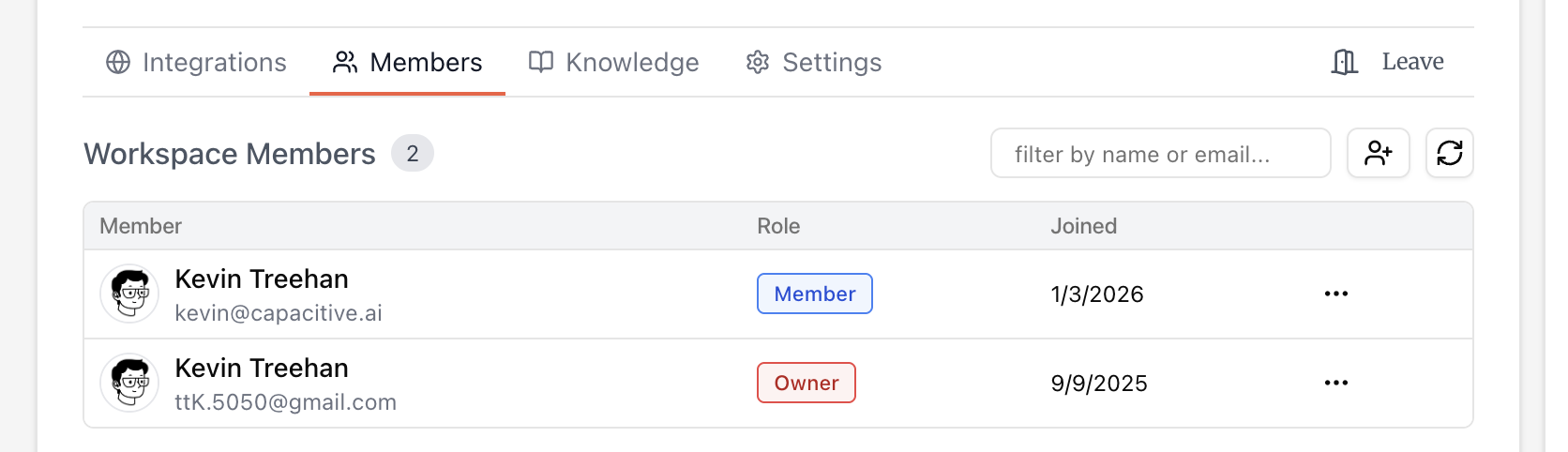
Workspace owners can invite other organization members to their workspace and assign them roles (Owner or Member). See the User Types page for details on what each workspace role can do. To leave a workspace, press leave.
Organization administrators automatically have access to all workspaces — public and private — regardless of whether they’ve been explicitly invited.
Workspace Settings
Workspace owners can update workspace settings including the name, description, and public/private status. You can also delete workspaces from their settings page.
When you delete a workspace, its integrations are disconnected and any Agent Keys that accessed it will lose access to those integrations. Knowledge folders linked to the workspace remain in your organization — they’re just unlinked from this workspace.